

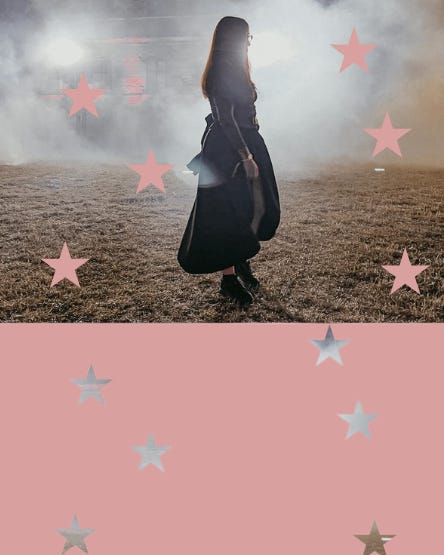
Welcome to one of my Canva tutorials on how to create this cutout effect →
Before we get into it, I have a new drop for my Canva Templates over to my Vault for the cozy creators and I wanted to share them with you and as always they come with some more tips and tricks on Canva.
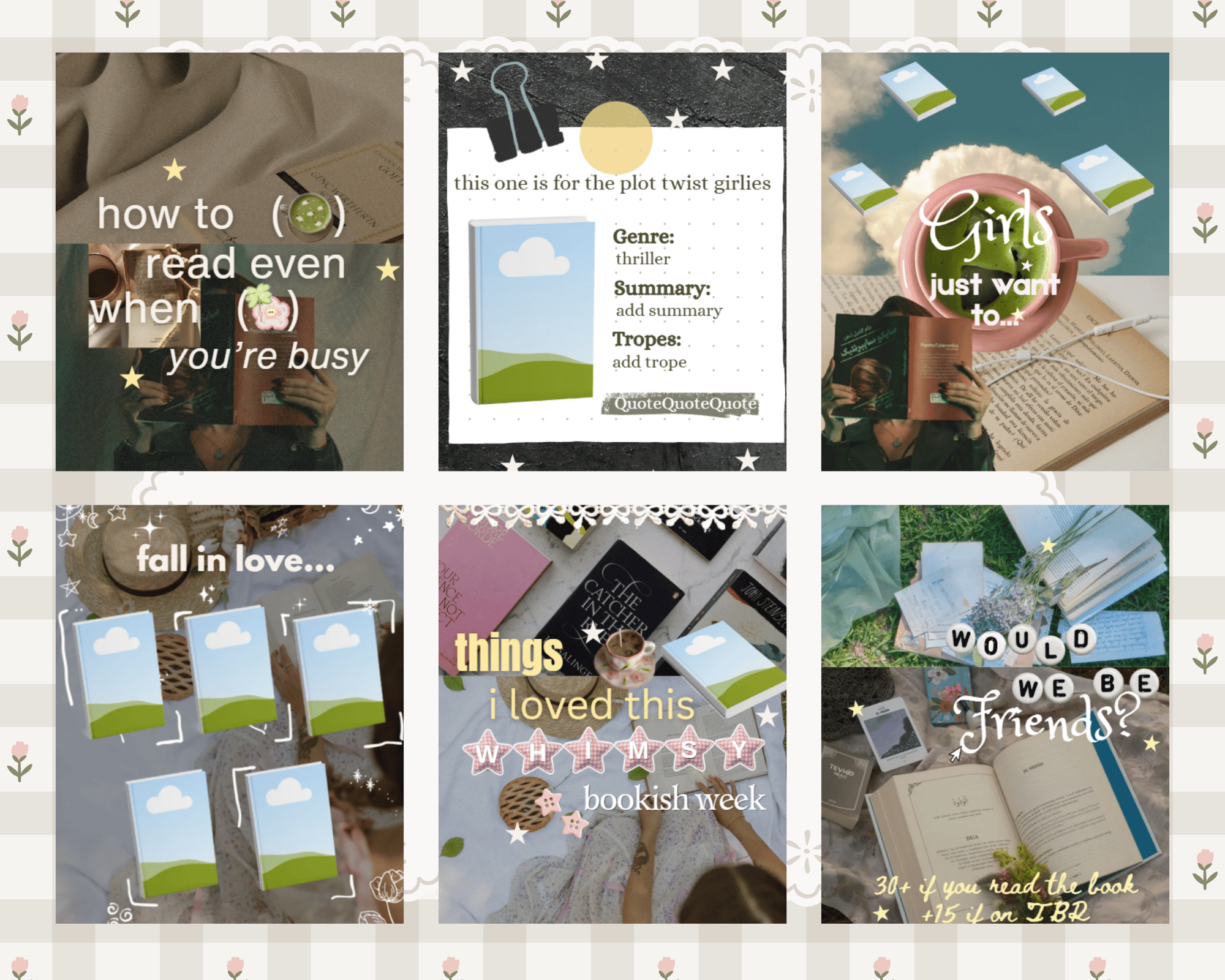
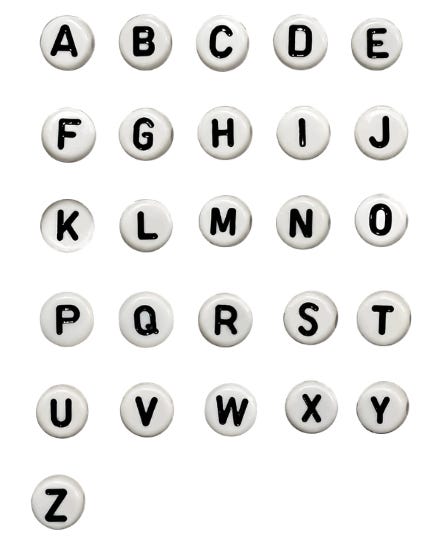
P.s You also get the bead alphabet with these templates <3.
Now for the part you are here for, how to create this cutout effect in Canva →

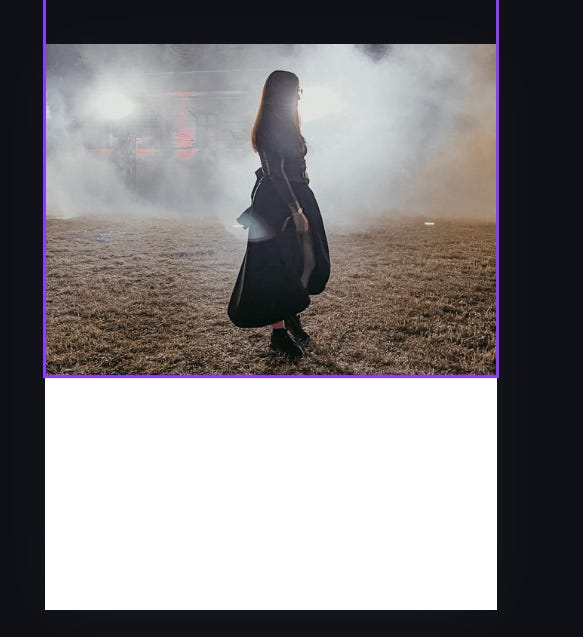
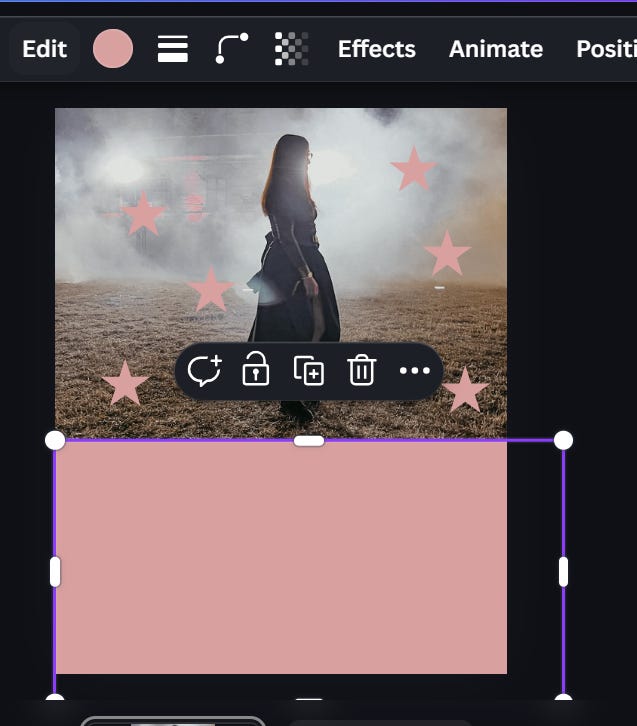
Upload your image and add it over half of your design
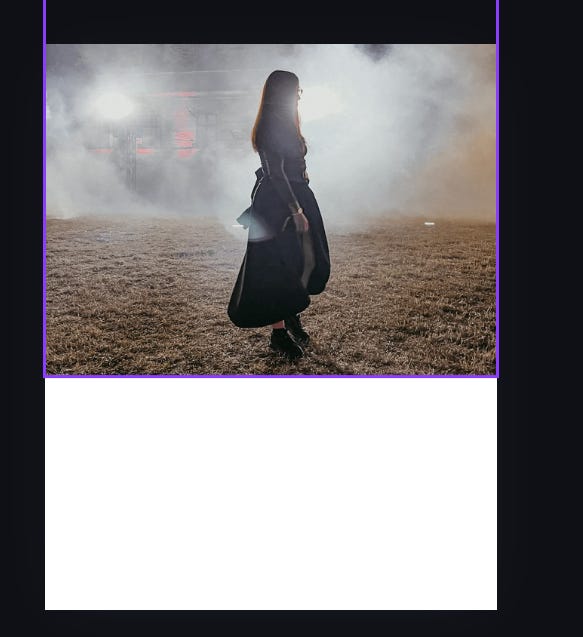
Add your preferred shapes and scatter them across your image
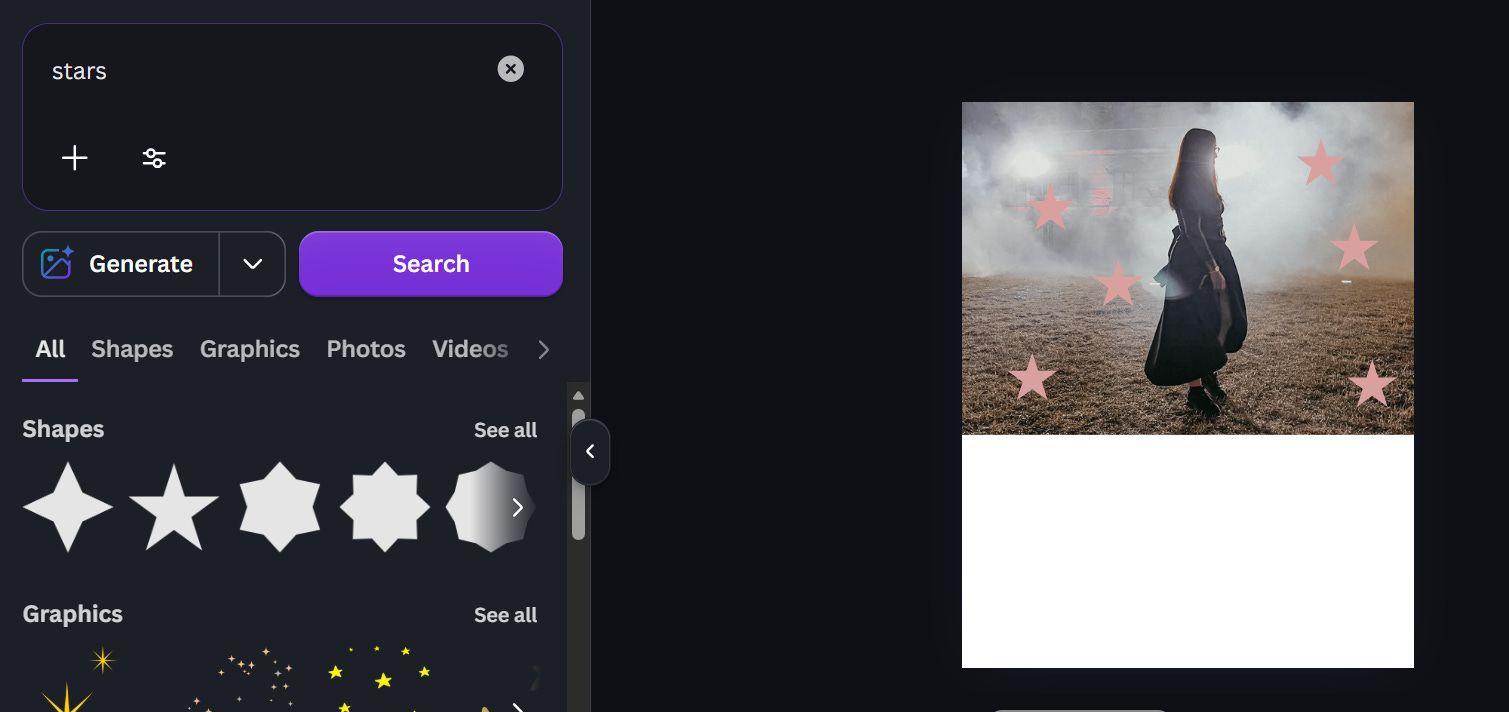
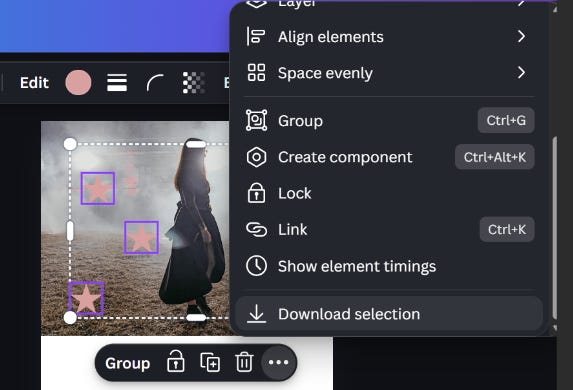
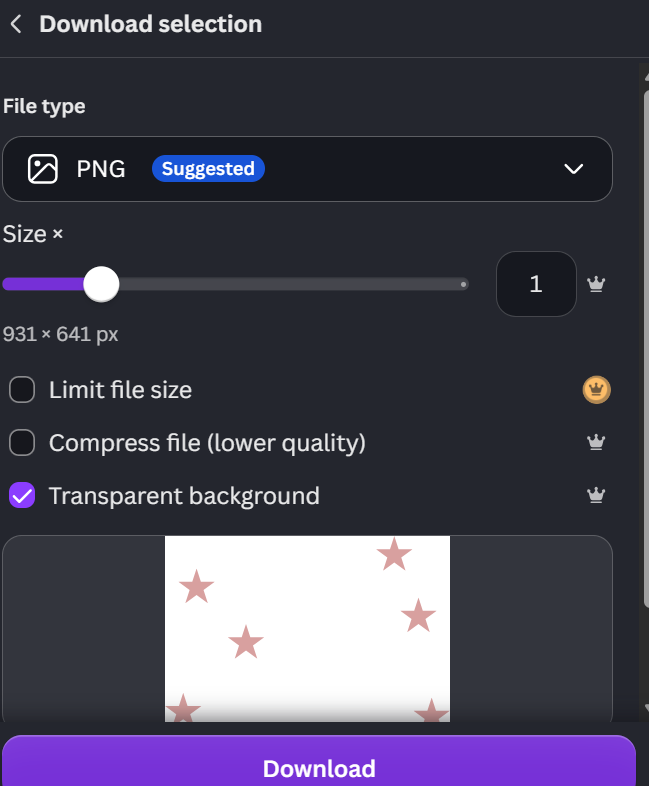
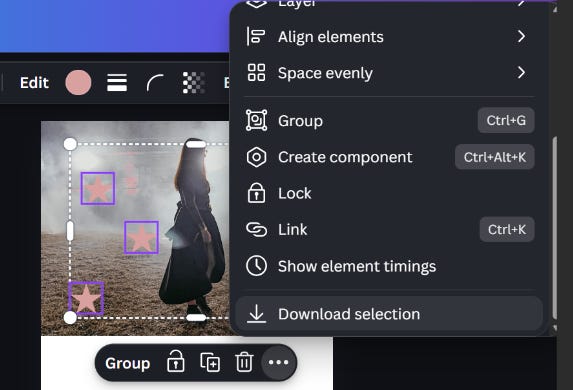
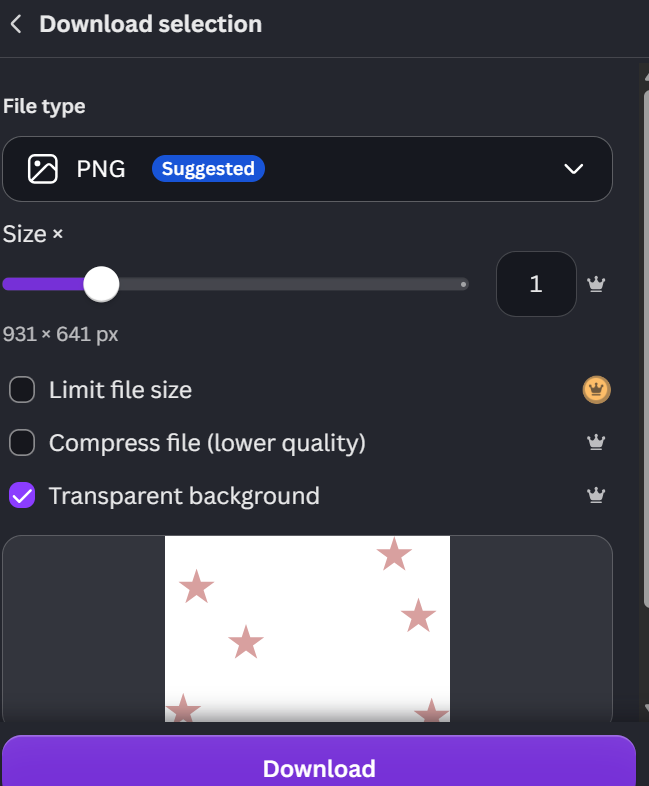
Select all the elements on top of your image (for me the stars) right click and download selection with transparent background
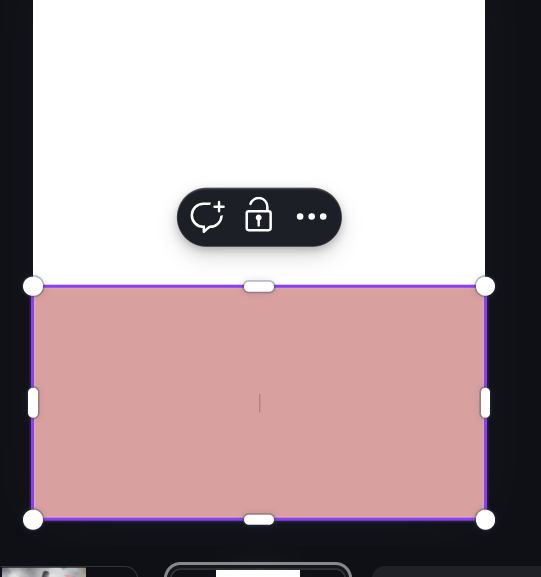
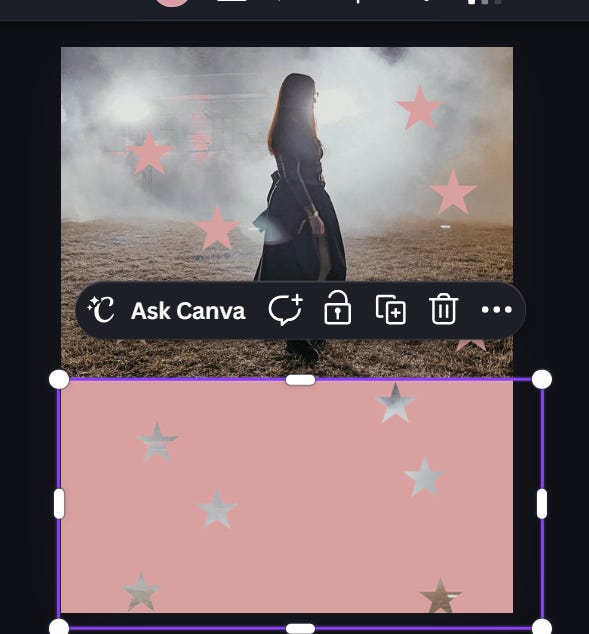
4. Select a rectangle and add it on the lower half
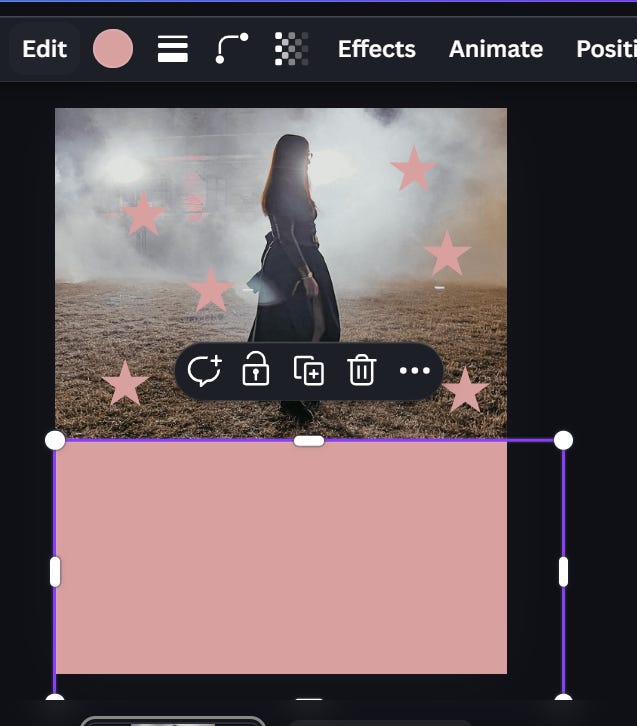
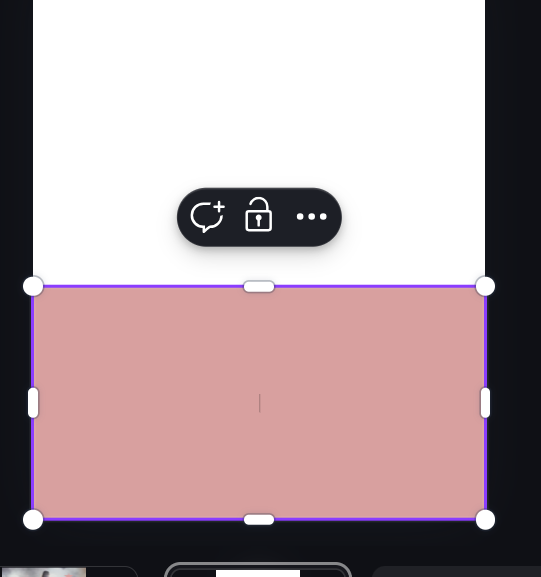
also download the rectangle selectio - I added it to a second page to download it separately
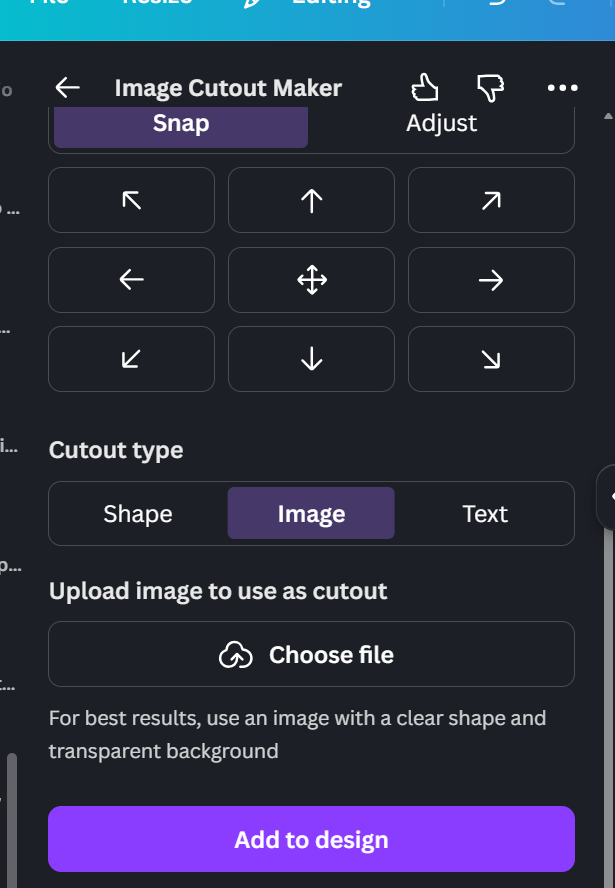
Go to apps → image cutouts → upload the rectangle and select “Image”
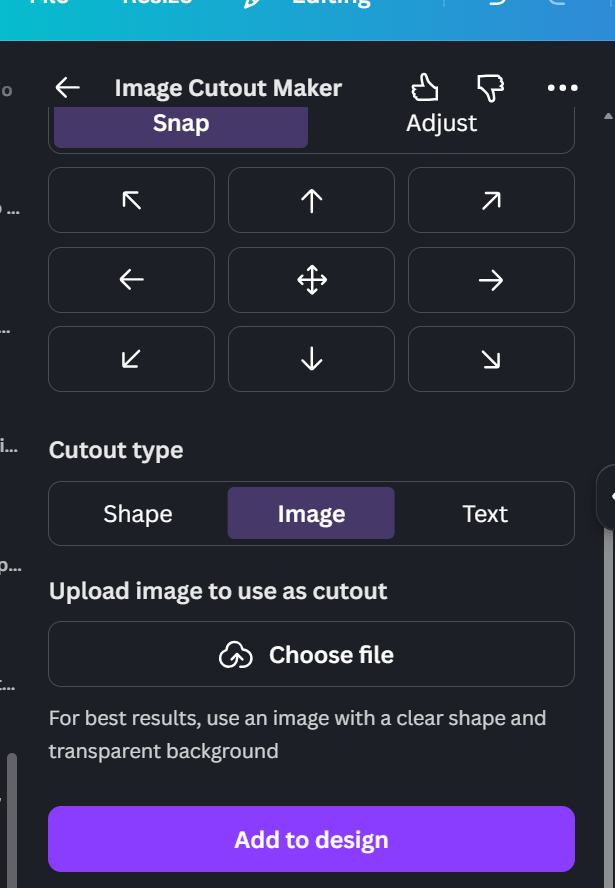
Chose the star elements
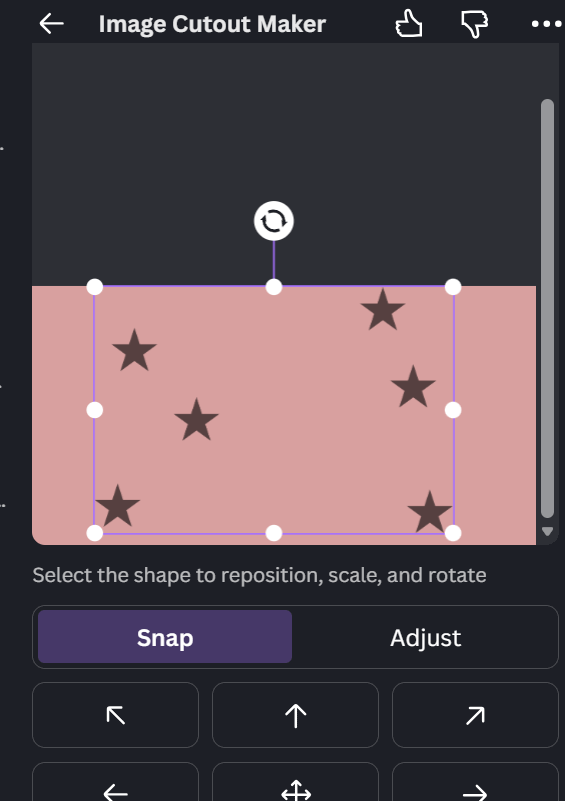
Add your background image behind and tadaaaa <3
If you loved this and want more like it, I write these breakdowns every single week here on Substack, plus deeper tutorials, monthly content calendars, Canva templates, and the full behind-the-scenes of how I actually grow my bookstagram over on my Patreon <3